VS Code Panel
Overview
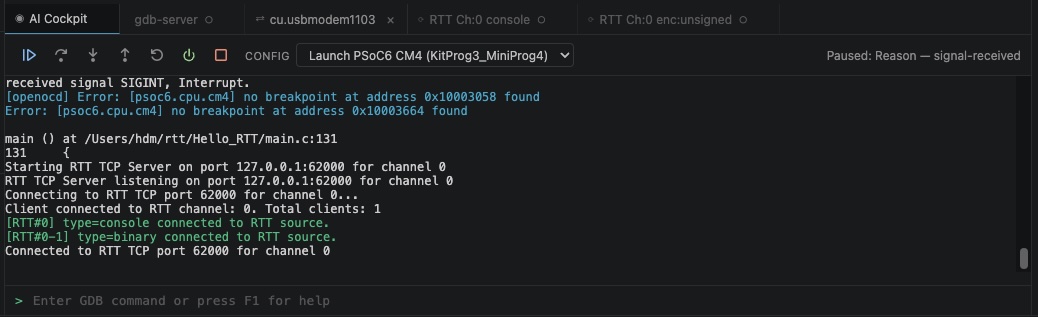
When the CLI session driver runs inside VS Code, output is displayed in the AI Cockpit panel — a WebviewPanel that provides the full TUI experience within VS Code without requiring a separate terminal window.
The AI Cockpit panel uses xterm.js for terminal rendering, giving it the same ANSI color and formatting support as a real terminal emulator.
Features
- Full xterm.js rendering: ANSI color codes, cursor control, and Unicode all work correctly
- Source-tagged output with color coding: each output source (
[RTT#0],[UART:label],[GDB]) has its own color - Toolbar buttons: quick access to common actions — pause, continue, reset, stop session
- Configuration selector dropdown: switch configurations without editing
launch.json - Session status indicator: shows the current state (running, halted, disconnected)
- GDB command input line: type GDB commands at the bottom of the panel
- Find:
Ctrl+F(Cmd+Fon macOS) searches the output of the tab you are on, with match case, whole word, and regular expression options.EnterandShift+Enterstep through matches, as doF3andShift+F3;Escapecloses the bar. Every tab has its own search, and the bar sits inside the output area so the tabs stay reachable while it is open
Accessing the Panel
The AI Cockpit panel opens automatically when you start a CLI session from within VS Code. It appears in the panel area alongside Terminal, Output, and Problems.
You can also open it from the Command Palette:
mcu-debug: Open AI Cockpit
Or by clicking the mcu-debug icon in the VS Code Activity Bar.
Hybrid Mode with AI
The AI Cockpit panel is designed for hybrid AI+human debugging:
- The panel shows the live debug stream
- You work with your AI assistant in the Claude Code / Copilot chat panel
- The AI sends commands via
mcu-debug attach(in terminal mode) - Both you and the AI see all output
The panel has a USER-REQUEST button that prefixes your message with the USER-REQUEST: tag that AI tools recognize as physical-world context.
Panel vs Terminal
| AI Cockpit Panel | VS Code Terminal | |
|---|---|---|
| Color support | Full xterm.js | Full |
| Toolbar | Yes | No |
| Status indicator | Yes | No |
| Config selector | Yes | No |
| Find | Yes | Yes |
| Integrated with AI | Yes | Manual |
| Scrollback | Unlimited | Unlimited |