TUI Mode
Overview
TUI (Text User Interface) mode activates automatically when stdout is a TTY. It provides a full-screen terminal interface built with ratatui, a Rust TUI framework.
Layout
┌─────────────────────────────────────────────────────┐
│  [mcu-debug] Session started. Config: "My Config"   │
│  [GDB]  Temporary breakpoint 1, main () at main.c:42│
│  [RTT#0] Initialized. Version 2.1                   │
│  [RTT#0] Counter: 0                                 │
│  [RTT#0] Counter: 1                                 │
│  [UART:Debug] Sensor ready                          │
│                                                     │
│                                                     │
├─────────────────────────────────────────────────────┤
│ > _                                                 │
└─────────────────────────────────────────────────────┘
The output area fills most of the screen. The input line is at the bottom.
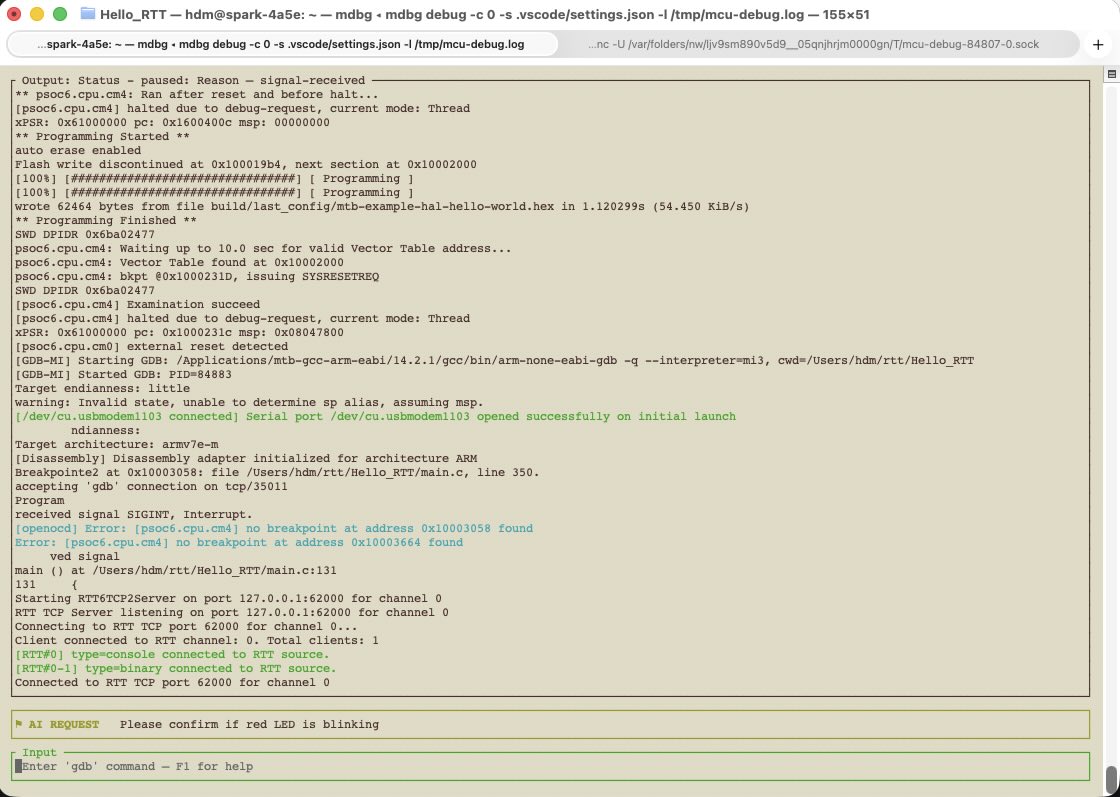
Layout with AI agent connected
Following is a real example of a debug session, with RTT and a serialport connected, and AI agent connected
Key Bindings
| Key | Action |
|---|---|
| Enter | Submit command |
| Up / Down arrow | Navigate command history |
| Page Up / Page Down | Scroll through output |
| End | Jump to bottom and resume auto-follow |
| Ctrl-C | Interrupt target (send SIGINT) |
| Ctrl-D | Graceful exit |
| Ctrl-X | Emergency exit (kills all child processes) |
| F1 | Show / hide help overlay |
Auto-Follow
The output view auto-follows new output — it scrolls to the bottom automatically as new lines arrive. When you scroll up (Page Up or mouse wheel), auto-follow pauses. Press End to jump to the bottom and resume auto-follow.
Source Colors
Each output source is color-coded for easy visual scanning:
[GDB]output: white[RTT#0]: cyan[RTT#1]: light blue[UART:label]: green[mcu-debug]status messages: yellow- Error messages: red
Command History
The Up/Down arrow keys navigate command history within the session. History is not persisted across sessions.
Forcing Terminal Mode
If you want plain text output even when running in a TTY:
mcu-debug debug --no-tui -c "My Config"